
Updated: 19 November 2026

Mobile Guide
WinWinter App: the mobile version step by step
WinWinter runs in Safari and Chrome: add a home screen shortcut on iPhone or Android in under a minute.
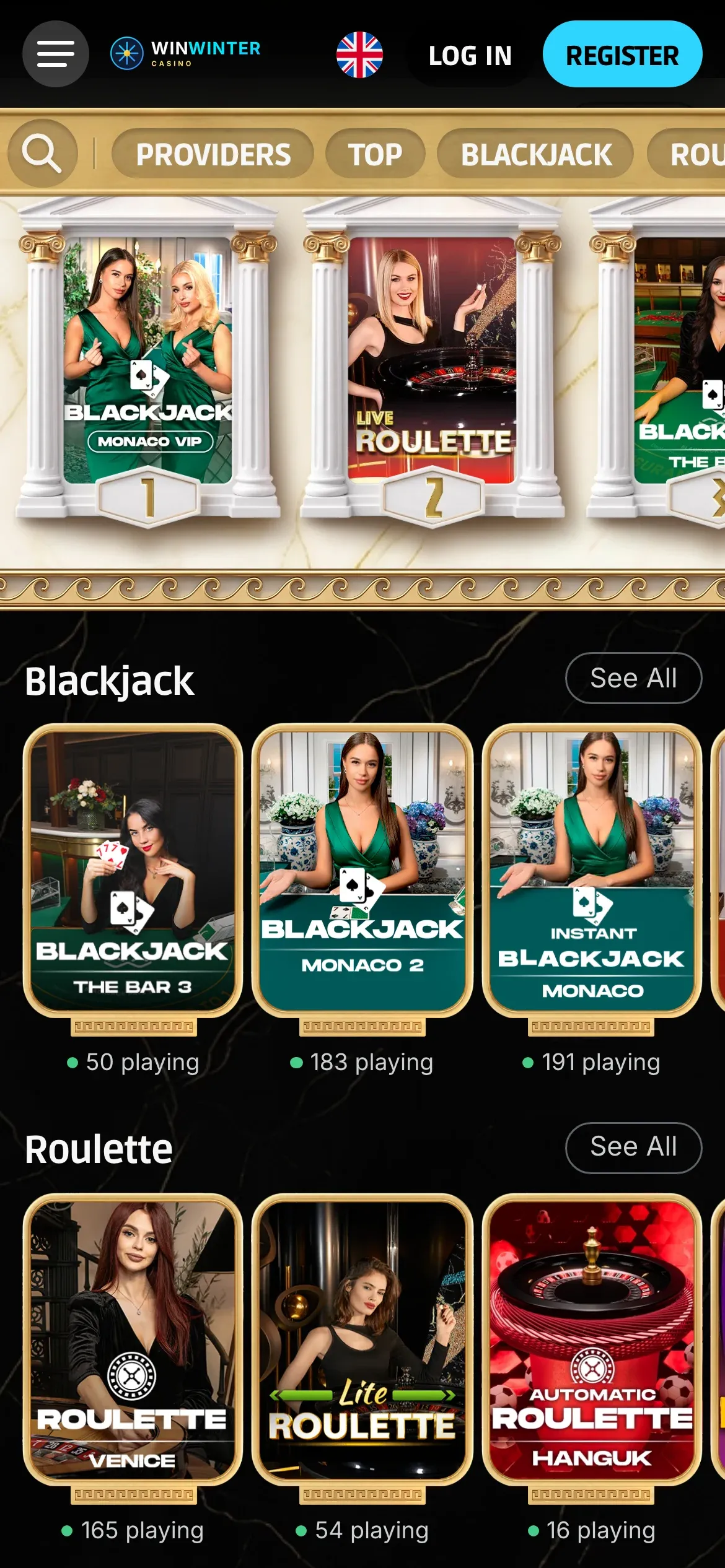
The live lobby in a mobile browser: no download, the same account and wallet.
WinWinter app: mobile in one table
| Device | How to open | What works |
|---|---|---|
| iPhone | Safari browser | Full account access, deposits, withdrawals, live dealer, slots, sportsbook |
| Android | Chrome browser | Full account access, deposits, withdrawals, live dealer, slots, sportsbook |
| Tablet | Browser | Full site layout, shared wallet, live tables, crash games |
| Desktop | Web browser | Full account, cashier, profile settings, sports betting, live dealer |
There is no WinWinter app available to download from the Apple App Store or Google Play Store. Players access the platform directly through a mobile browser, which serves as the full interface for the casino and sportsbook. This setup means no software updates or installations are required on your device. The mobile site provides access to the shared wallet, allowing users to move between slots, table games, and sports betting with a single account.
All core cashier functions operate through the mobile browser. You can initiate a deposit from £20 using methods like Apple Pay, Google Pay, Visa, Mastercard, or Revolut. The mobile interface supports withdrawals from £50 up to £500 per day. If the platform requires verification before your first withdrawal, you can upload copies of your passport, driving licence, or utility bill directly via your phone camera. The live dealer suite by Evolution and the complete sportsbook, featuring 30 plus sports and esports like Dota 2 and League of Legends, are fully functional on mobile screens. Remember that new sign-ups from the UK may currently be closed, so check that registration is available for your location before attempting a deposit.
WinWinter app: when the install fails
Technical issues when accessing the mobile site are often related to browser settings rather than the platform itself. Because there is no actual software to install, persistent errors usually stem from cached data or outdated browser versions. If the page fails to load or the login process enters a continuous loop, the first step is to clear the cache and cookies in your mobile browser settings. Accumulated temporary data can conflict with the session tokens used for the shared wallet, causing the site to misbehave.
- Clear browser cache and cookies. Open your mobile browser settings, select privacy or site data, and remove cached files for the WinWinter domain. This often resolves login loops and graphical glitches.
- Update the browser. Ensure you are running the latest version of Chrome or Safari. Older browser versions may lack support for newer encryption standards or game engine requirements.
- Disable private or incognito modes. These modes often block third-party cookies, which the cashier requires to process your transaction or maintain a logged-in session.
- Check storage availability. While the site is browser-based, some mobile browsers require a small amount of local storage for session persistence. Ensure your device has at least a few hundred megabytes of free space.
- Test on a different connection. If you are using public Wi-Fi, switch to mobile data. Some networks have firewalls that might restrict access to gaming or betting domains, causing the connection to time out during the deposit process.
If these steps do not rectify the problem, you may need to check the status of your connection. A stable internet connection is required for live dealer games, which use high-bandwidth streaming. If the sportsbook or live casino section remains unresponsive even after clearing your cache, consider that the mobile site is built for standard web protocols. Rarely, a browser extension or a restrictive ad-blocker may interfere with the cashier interface or the display of promotional banners. Disable such extensions temporarily to see if the functionality returns to normal.
WinWinter mobile: home screen shortcut on iPhone
Creating a home screen shortcut allows you to access the site with a single tap, mimicking the experience of a dedicated application. On an iPhone, the process relies on the Safari share menu, which creates a web clip pointing directly to the platform. This shortcut maintains your session data more consistently than typing the URL manually every time you wish to check your balance.
- Open Safari on your iPhone and navigate to the WinWinter website. Ensure you are on the login page or the main dashboard.
- Locate the share icon at the bottom of the screen. It is the square with an upward-pointing arrow.
- Scroll down the sharing menu options until you see the button labelled Add to Home Screen.
- Tap this button and confirm the name of the shortcut. You can keep the default name or shorten it to fit your home screen layout.
- Tap Add in the top right corner. The icon will now appear on your home screen like any other application.
If you find that the shortcut does not behave correctly, or if you have questions regarding the mobile interface, you may consult with WinWinter support to verify if there are any current known issues with mobile browser compatibility. They can clarify whether a specific iOS update is causing persistent logout issues or if the site is undergoing maintenance. The shortcut acts as a gateway; it does not store your password, meaning you will need to re-authenticate if your session expires due to inactivity. For security on a shared device, always use the logout button within the account menu before closing the browser or the shortcut. This clears the session cookie and prevents unauthorised access to your balance or betting history.
WinWinter app: shortcut on Android
Android users can achieve similar functionality using the Chrome browser. This method creates a direct link on your home screen that opens the site in a dedicated browser window, often hiding the address bar to provide a cleaner, more immersive experience. This is the most effective way to mimic the utility of a native app without the need for a download from a store.
- Open Chrome on your Android smartphone or tablet and navigate to the WinWinter site.
- Tap the three-dot menu icon, which is typically found in the top right corner of the screen.
- Look for the option in the list that says Add to Home screen. It may be nested within a submenu depending on your specific version of Chrome.
- A prompt will appear asking you to name the shortcut. Choose a name that is easy to identify, such as WinWinter.
- Confirm by tapping Add. The system will place the shortcut on your home screen in the first available slot.
Once added, this shortcut allows for quick access to the cashier where you manage your deposits and payouts. Android devices often group these web shortcuts in a specific folder or place them alongside your regular apps. Regarding data use, because the site contains thousands of games, it can consume a significant amount of data. If you are not on an unlimited data plan, it is advisable to play slots or live games while connected to a stable Wi-Fi network. Notifications from the site are handled by the browser itself. If you allow notifications via the browser settings, you may receive updates when a payout request is approved, though you should verify these statuses in your account section as well. Since this is just a shortcut, deleting it from your home screen does not affect your account, your deposit history, or your saved verification documents. You can remove and recreate the shortcut at any time without needing to re-login unless your previous session has already timed out.
WinWinter app: common doubts
Can I deposit using Apple Pay or Google Pay on my mobile browser?
Yes, you can use Apple Pay or Google Pay for mobile deposits starting from £20 up to £800 per transaction. Cards and e-wallets process instantly with no casino fees charged on transactions.
What is the maximum amount I can withdraw per day on mobile?
The maximum withdrawal limit is £500 per day across all mobile devices, with a minimum withdrawal amount of £50. Payouts are sent back to your original deposit method and are subject to verification checks.
How long do mobile withdrawals take to arrive?
Pending approval typically takes up to 24 hours. After approval, crypto arrives instantly, Skrill typically within 24 hours, cards typically take one to three working days, and bank transfers take three to five working days.
Are all casino games and sports available on the mobile browser version?
You get full access to thousands of games with demo modes on most slots, live dealer tables from Evolution, and a sportsbook covering over 30 sports and esports. The casino and sportsbook share a single account and wallet.